

Paper Does Not Feed Properly/"No Paper" Error Occurs
Vấn đề
Nguyên nhân và Giải pháp
Loading Paper
Loading Plain Paper / Photo Paper
You can load plain paper or photo paper.
See[Loading Paper]
- When loading two or more sheets of paper, flip through the paper before loading.
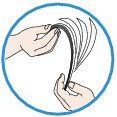
- When loading two or more sheets of paper, align the edges of the sheets before loading.
- When loading two or more sheets of paper, make sure that the paper stack does not exceed the paper load limit.
However, proper feeding of paper may not be possible at this maximum capacity depending on the type of paper or environmental conditions (either very high or low temperature and humidity). In such cases, reduce the sheets of paper you load at a time to less than half of the paper load limit.
- Always load the paper in portrait orientation, regardless of the printing orientation.
- When you load the paper, load the paper with the print side facing DOWN and slide the paper guides to align with the both sides of the paper.
-> [ Loading Paper ]
- When you load the paper, insert the paper stack until the leading edge touches the far end of the front tray.
Media Types You Cannot Use
Do not use the following types of paper. Using such paper will cause not only unsatisfactory results, but also the machine to jam or malfunction.
Loading Paper
Loading Plain Paper / Photo Paper
You can load plain paper or photo paper.
See[Loading Paper]
- When printing on envelopes, refer to [ Loading Envelopes ], and prepare the envelopes before printing.
Once you have prepared the envelopes, load them in portrait orientation. If the envelopes are placed in landscape orientation, they will not feed properly.
Check 6: If multiple sheets of plain paper is fed from the machine, select the setting for preventing double-feed of plain paper
If multiple sheets of plain paper is fed from the machine, select the setting for preventing double-feed of plain paper using the operation panel or your computer.
After printing is finished, disable the setting for preventing double-feed of plain paper; otherwise, the setting is applied from the next time.
- To set by using the operation panel
Press the MENU button, select Setup, Device settings, and Print settings in this order, and then set Prevent paper double-feed to ON.
- To set by using your computer

Open the printer driver setup window, and in Custom Settings in the Maintenance sheet, select the Prevent paper double-feed check box, and then click OK.

In the Canon IJ Printer Utility, select Custom Settings in the pop-up menu, select the Prevent paper double-feed check box, and then click Apply.
REFERENCE
Printing speed will be reduced if Prevent paper double-feed function is enabled.
REFERENCE
Cleaning the paper feed roller will wear the roller, so perform this procedure only when necessary.
Cleaning the Paper Feed Roller
If the paper feed roller is dirty or paper powder is attached to it, paper may not be fed properly.
In this case, clean the paper feed roller. Cleaning will wear out the paper feed roller, so perform this only when necessary.
If you cannot remove the paper or the paper tears inside the machine, or if the paper jam error continues after removing the paper, contact the service center.