
Can I apply Creative filters to images captured by EOS 60D? (Creative filters)
Solution
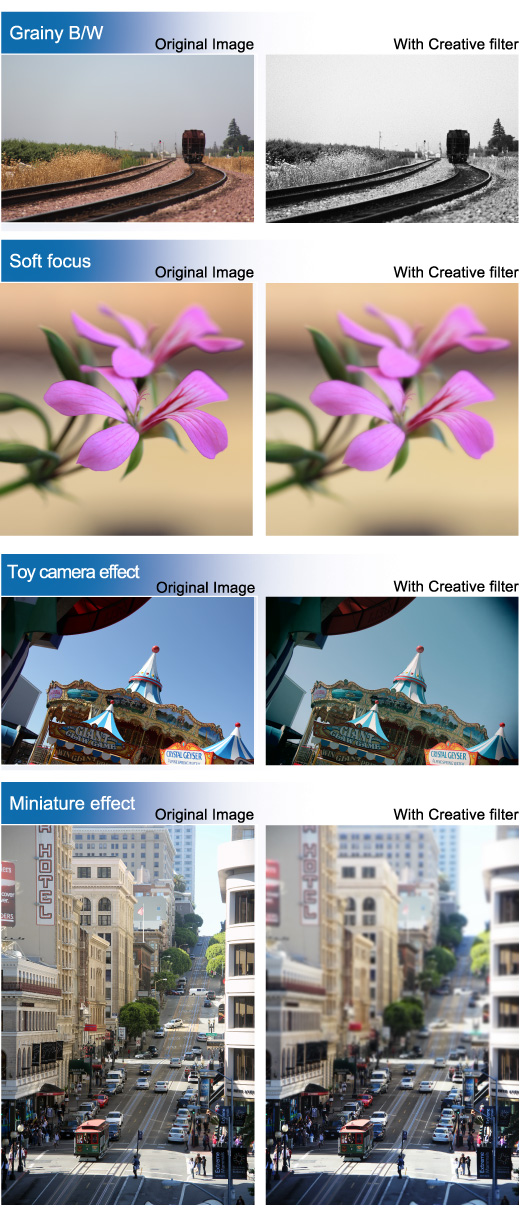
You can apply "Creative filters" to an image and save it as a new image: Toy camera effect, and Miniature effect etc.
CAUTION
Creative filters cannot be applied to  and
and  images. With + JPEG and + JPEG images, the Creative filter will be applied to the JPEG image.
and images. With + JPEG and + JPEG images, the Creative filter will be applied to the JPEG image.| Grainy B/W | Makes the image grainy and black and white. By adjusting the contrast, you can change the black-and-white effect. |
| Gives the image a soft look. By adjusting the blur, you can change the degree of softness. | |
| Toy camera effect | Gives a color cast typical of toy cameras and darkens the image's fours corners. By adjusting the color tone, you can change the color cast. |
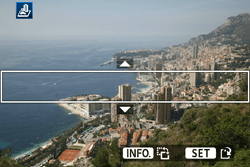
| Miniature effect | Creates a diorama effect. In step 5, you can press the <INFO.> button to change the orientation (vertical/horizontal) of the white frame that shows where you want the image to look sharp. |
1. Set the power switch to <ON>.
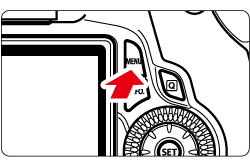
2. Press the <MENU> button to display the menu.
3. Under the [  ] tab, select [Creative filters], and then press the <SET> button. Images will be displayed.
] tab, select [Creative filters], and then press the <SET> button. Images will be displayed.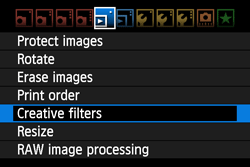

- Turn the <Quick Control Dial> to select the image you want to apply a filter to.
- By pressing the <
 > button, you can switch to the index display and select an image.
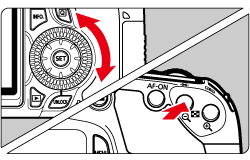
4. When you press the <SET> button, the filters will be displayed.
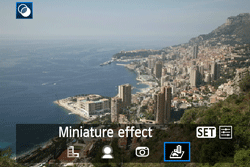
- Press the <Multi-controller> key to select a filter, then press the <SET> button.
- The image applied with the respective filter will be displayed.
5. Press the <Multi-controller> key to adjust the filter effect, then press the <SET> button.
For the miniature effect, press the <Multi-controller> key and select the image area (within the white frame) where you want it to look sharp. Then press the <SET> button.
NOTE
For the miniature effect, you can press the <INFO.> button to change the orientation (vertical/horizontal) of the white frame that shows where you want the image to look sharp.
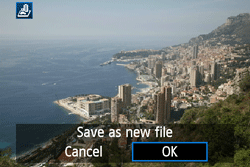
6. Select [OK] to save the image.
- Note the destination folder and image file number, then select [OK].
- To apply a filter to another image, press the <MENU> button to return to the image selection screen, and then repeat steps 3 to 6.
7. To exit and return to the menu, press the <MENU> button.
NOTE
With  + JPEG images, the RAW image will be applied with the Creative filter and saved as a JPEG image.
+ JPEG images, the RAW image will be applied with the Creative filter and saved as a JPEG image.