

Troubleshooting Paper Abrasion and Blurry Images (Head Height) (iPF8300S)
Giải pháp
The Printhead height setting affects printing quality.
Specifying a low Printhead height makes images clearer and enhances printing quality but may cause paper to rub against the Printhead.
On the other hand, specifying a high Printhead height will prevent paper from rubbing against the Printhead but may reduce the printing quality.
IMPORTANT
- Paper rubbing against or becoming caught on the Printhead may jam or result in printed documents that are soiled.
NOTE
- Raise or lower the printhead, depending on the nature of the problem.
1.On the [Tab Selection screen] of the Control Panel, press  or
or  to select the Paper tab (
 ).
).
or to select the Paper tab ().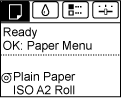
NOTE
- If the [Tab Selection screen] is not displayed, press the [Menu] button.
2.Press the [OK] button.
The [Paper Menu] is displayed.
3.Press  or
or  to select [Paper Details], and then press the [OK] button.
or to select [Paper Details], and then press the [OK] button.4.Press  or
or  to select the type of paper, and then press the [OK] button.
or to select the type of paper, and then press the [OK] button.NOTE
- When [Head Height] is set to [Automatic], the setting value selected for the previous print job is displayed (to the right of [Automatic] ) once you select the type of paper currently supplied.
However, the value is cleared when the printer is turned off or the paper is replaced.
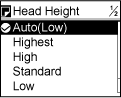
5.Press  or
or  to select [Head Height], and then press the [OK] button.
or to select [Head Height], and then press the [OK] button.6.Press  or
or  to select the desired setting value, and then press the [OK] button.
or to select the desired setting value, and then press the [OK] button. NOTE
- Using [Automatic] will ensure that the printer adjusts the Printhead height to the optimal level before printing, accounting for the ambient temperature and humidity. When a setting other than [Automatic] is used, that value will always be applied.
- Depending on the type of paper, some setting values may not be available.