
How do I resize images captured by EOS M with the camera? (How to resize an image to make the pixel count lower.)
Giải pháp
With your camera, you can resize an image to make the pixel count lower and save it as a new image. Resizing an image is possible only with JPEG L / M / S1 / S2 images.
IMPORTANT
JPEG S3 and RAW images cannot be resized.
1. Set the power to <ON>.
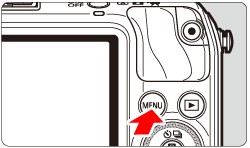
2. Press <MENU> to display to the menu.
3. Under the [  ], select [Resize], then press <
  /SET>.
], select [Resize], then press < /SET>.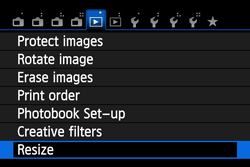
The images will be displayed.
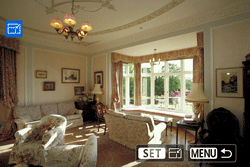
4.Select the image you want to resize.
You can also select an image on the index display.
5. When you press </SET>, the image size will be displayed. Press the <Main Dial> to select the desired image size, then press </SET>.
/SET>, the image size will be displayed. Press the <Main Dial> to select the desired image size, then press </SET>.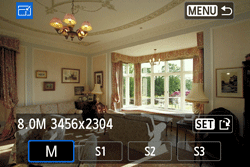
NOTE
The target sizes ( M / S1 / S2 / S3 ) in this window will be smaller than the original size. For example, if the original image size is S1, you can select S2 or S3.
6. Select [OK] to save the resized image.
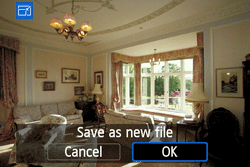
7. Check the destination folder and image file number, then select [OK].
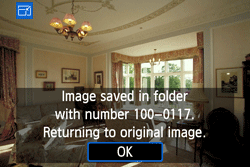
To resize another image, repeat steps 4 to 7.
8. Press the <MENU> button to return to the menu.
The [4.5M 2592x1728] image size displayed in step 5 has a 3:2 aspect ratio. The image size according to aspect ratios is shown in the table below. For asterisked image-recording quality, the pixel count does not exactly match the aspect ratio. The image will be slightly cropped.
| Quality | Aspect Ratio and Pixel Count | |||
| 3:2 | 4:3 | 16:9 | 1:1 | |
 | 3456x2304 (8.0 megapixels) | 3072x2304 (7.0 megapixels) | 3456x1944 (6.7 megapixels) | 2304x2304 (5.3 megapixels) |
 | 2592x1728 (4.5 megapixels) | 2304x1728 (4.0 megapixels) | 2592x1456* (3.8 megapixels) | 1728x1728 (3.0 megapixels) |
 | 1920x1280 (2.5 megapixels) | 1696x1280* (2.2 megapixels) | 1920x1080 (2.1 megapixels) | 1280x1280 (1.6 megapixels) |
 | 720x480 (350,000 pixels) | 640x480 (310,000 pixels) | 720x400* (290,000 pixels) | 480x480 (230,000 pixels) |