
Shooting in Various Scenes (PowerShot ELPH 330 HS / IXUS 255 HS)
Giải pháp
Choose a mode matching the shooting scene, and the camera will automatically configure the settings for optimal shots.
1. Set the mode switch to < >, and press the Press the <Power> button of the camera.
>, and press the Press the <Power> button of the camera.2. Press the <FUNC./SET> ( ) button.
) button.3. The following screen appears.
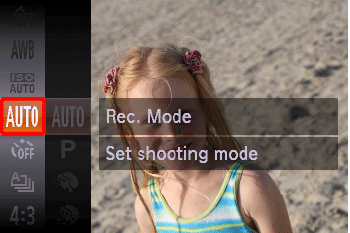
Press the < ><
>< > buttons to select the [Shooting mode]. (If no changes have been made to the settings so far, [AUTO] (
 )will be displayed.)
><> buttons to select the [Shooting mode]. (If no changes have been made to the settings so far, [AUTO] ()will be displayed.)Press the <FUNC./SET> ( ) button.
) button.4. The following screen appears.
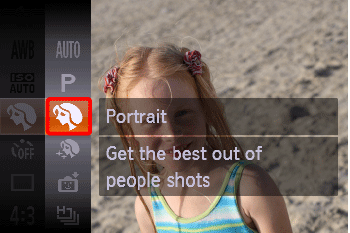
Press the <><> buttons to select the [Shooting mode] you want ( [Portrait] mode ( ) is selected in the image shown above).
><> buttons to select the [Shooting mode] you want ( [Portrait] mode () is selected in the image shown above).Press the <FUNC./SET> () button.
) button.5. The following screen appears.
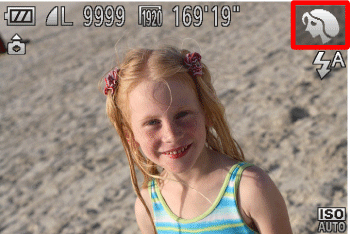
When the icon for the [Shooting Mode] you want appears in the top-right corner of the screen, the setting is complete.
| Scene | Shooting mode | Effect | |
|---|---|---|---|
| Shooting in Various Conditions | Shoot portraits | [Portrait] ( ) ) | Take shots of people with a softening effect. |
| Shoot evening scenes without using a tripod | [Handheld
NightScene] ( ) ) | ・Beautiful shots of evening scenes or portraits with evening scenery in the background, without the need to hold the camera very still (as with a tripod). ・A single image is created by combining consecutive shots, reducing camera shake and image noise. | |
| Shoot with snowy backgrounds | [Snow] ( ) ) | Bright, natural-colored shots of people against snowy backgrounds. | |
| Shoot fireworks | [Fireworks] ( ) ) | Vivid shots of fireworks. | |
| Applying Special Effects | Making Skin Look Smoother | [Smooth Skin] ( ) ) | You can apply a smoothening effect when shooting images of people. The effect level and color ([Lighter Skin Tone], [Darker Skin Tone]) can be chosen. |
| Shoot in vivid colors | [Super
Vivid] ( ) ) | Shots in rich, vivid colors. | |
| Posterized shots | [Poster Effect] ( ) ) | Shots that resemble an old poster or illustration. | |
| Shooting with a Fish-Eye Lens Effect | [Fisheye
Effect] ( ) ) | Shoot with the distorting effect of a fish-eye lens. | |
| Shots Resembling Miniature Models | [Miniature Effect] ( ) ) | Creates the effect of a miniature model, by blurring image areas above and below your selected area. | |
| Shooting with a Toy Camera Effect | [Toy
Camera Effect] ( ) ) | This effect makes images resemble shots from a toy camera by vignetting (darker, blurred image corners) and changing the overall color. | |
| Shooting With a Soft Focus Effect | [Soft Focus Effect] ( ) ) | This function allows you to shoot images as if a soft focus filter is attached to the camera. You can adjust the effect level as desired. | |
| Shooting in Monochrome | [Monochrome] ( ) ) | Shoot images in black and white, sepia, or blue and white. | |
| Shooting with Color Accent | [Color Accent] ( ) ) | Choose a single image color to keep and change other colors to black and white. | |
| Shooting with Color Swap | [Color Swap] ( ) ) | You can replace one image color with another before shooting. Note that only one color can be replaced. | |
| Special Modes for Other Purposes | Auto Shooting After Face Detection | [Smart Shutter] ( ) ) | [Auto Shooting After Smile Detection], [Wink Self-Timer], [Face Self-Timer] |
| Shooting Long Exposures | [Long Shutter] ( ) ) | Specify a shutter speed of 1 – 15 seconds to shoot long exposures. In this case, mount the camera on a tripod or take other measures to prevent camera shake. | |
| High-Speed Continuous Shooting | [High-speed
Burst] ( ) ) | You can shoot a series of shots in rapid succession by holding the shutter button all the way down. | |
| Shooting Stitch Assist Images | [Stitch Assist] ( ) ) | Shoot a large subject by taking multiple shots at various positions, and then use the software to combine them into a panorama. | |
| Shooting Super Slow Motion Movies | [Slow Motion Movie] ( ) ) | You can shoot fast-moving subjects for playback later in slow motion. Note that sound is not recorded. | |
| Shooting in Program AE | [  ] Mode ] Mode | You can customize many function settings to suit your preferred shooting style. | |
NOTE
- [Handheld NightScene] ()
- Shots may look grainy because the ISO speed is increased to suit the shooting conditions.
- Because the camera will shoot continuously, hold it steady while shooting.
- Excessive camera shake or certain shooting conditions may prevent you from obtaining the desired results.
- [Fireworks] ()
mount the camera on a tripod or take other measures to keep it still and prevent camera shake. Additionally, you should set [IS Mode] to [Off] when using a tripod or other means to hold the camera still
- In the [Smooth Skin] (), [Super Vivid] (), [Poster Effect] (), [Fisheye Effect] (), [Miniature Effect] (), and [Toy Camera Effect] ( ) modes, try taking some test shots first, to make sure you obtain the desired results.
- Using the flash in [Color Accent] (), and [Color Swap] () mode may cause unexpected results.