


Erasing Images
Giải pháp
This section explains how to erase images.
IMPORTANT
- Be careful when erasing images, because they cannot be recovered. However, protected images cannot be erased.
You can erase unwanted images individually.
1. Press the <Playback> ( ) button to turn on the camera.
) button to turn on the camera.2. Press the [  ], [
], [  ]buttons to choose an image.
], [ ]buttons to choose an image. 
3. Press the < > button.
> button.
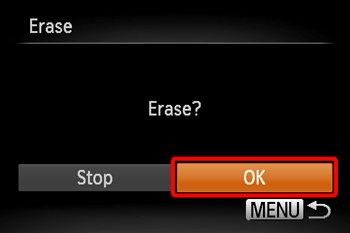
4. After [Erase?] is displayed, press the [ ], [ ] buttons to choose [Erase], and
], [ ] buttons to choose [Erase], andthen press the <FUNC./SET> ( ) button.
) button.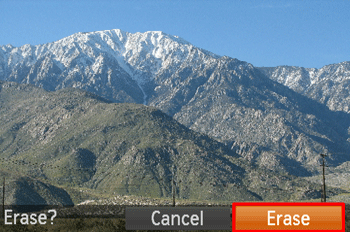
The current image is now erased.
NOTE
- To cancel erasure, press the [ ], [ ] buttons to choose [Cancel], and then press the <FUNC./SET> (
 ) button.
You can select images and erase them in a batch.
IMPORTANT
- Be careful when erasing images, because they cannot be recovered. However, protected images cannot be erased.
1. Press the <Playback> () button to turn on the camera.
) button to turn on the camera.2. Press the < > button and choose [Erase] on the [
  ] tab.
> button and choose [Erase] on the [ ] tab. 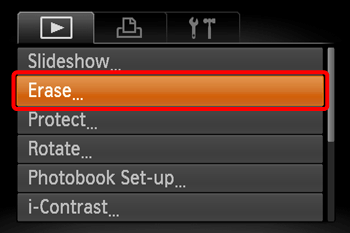
3. Press the [ ], [  ]buttons to choose [Select] and press the <FUNC./SET> () button.
], [ ]buttons to choose [Select] and press the <FUNC./SET> () button.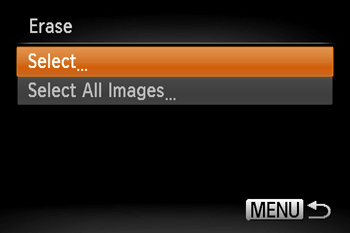
REFERENCE
- You can select [All Images] to erase all images at once.
4. Press the [ ], [ ]to select the desired images, and then press the <FUNC./SET> () button. [  ] is displayed.
], [ ]to select the desired images, and then press the <FUNC./SET> () button. [ ] is displayed. 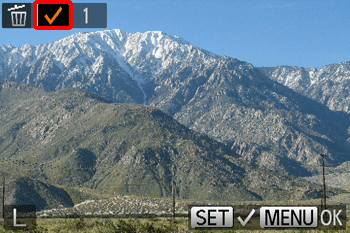
NOTE
To cancel selection, press the < > button again. [ ] is no longer displayed.
> button again. [ ] is no longer displayed.5. Repeat step 4 to specify other images.
6. Press the < > button. A confirmation message is displayed.
> button. A confirmation message is displayed.Press the [ ], [ ] buttons to choose [OK], and then press the <FUNC./SET> () button.
], [ ] buttons to choose [OK], and then press the <FUNC./SET> () button.