
Locking the AF point to the center of the screen
Giải pháp
To display the AF point in the center, change the [AF Frame] mode to [Center].
The setting procedure is explained below.
IMPORTANT
- The position and shape of the operation buttons, screens displayed, and setting items may differ according to the model you use.
For a list of shooting modes in which the AF point point cannot be set to [Center], please refer to the table at the bottom of the page.
1. Turn the camera on.
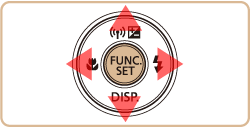
2. Press the <MENU> button.
3. On the [Shooting] ( ) tab, press the <
 ><
>< > buttons to choose [AF Frame], and then press the <
 ><
>< > buttons to choose [Center].
) tab, press the <><> buttons to choose [AF Frame], and then press the <><> buttons to choose [Center].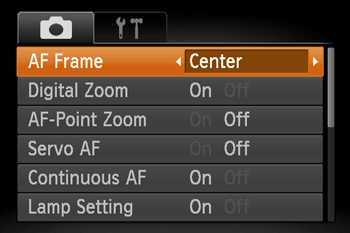
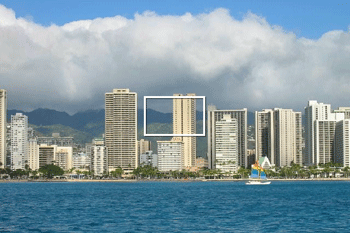
One AF frame will be displayed in the center.
IMPORTANT
・A yellow AF frame is displayed with  if the camera cannot focus when you press the shutter button halfway.
if the camera cannot focus when you press the shutter button halfway.NOTE
- To reduce the AF frame size, press the <MENU> button and set [AF Frame Size] on the [Shooting] () tab to [Small].
- The AF frame size is set to [Normal] when you use the digital zoom or digital tele-converter.
- To compose shots so that subjects are positioned at the edge or in a corner, first aim the camera to capture the subject in an AF frame, and then hold the shutter button halfway down. As you continue to hold the shutter button halfway, recompose the shot as desired, and then press the shutter button all the way down (Focus Lock).
- The AF frame position is enlarged when you press the shutter button halfway and [AF-Point Zoom] is set to [On].
The [AF Frame] mode cannot be set to [Center] in the following shooting modes:
| Model | Shooting Mode |
|---|---|
| PowerShot SX600 HS |  , ,  , ,  , ,  , ,  , ,  |
| PowerShot ELPH 340 HS / IXUS 265 HS | , , , , , |
| PowerShot ELPH 150 IS / IXUS 155 PowerShot ELPH 140 IS / IXUS 150 PowerShot ELPH 135 / IXUS 145 | ,  , , |