
Specifying a portion of an image to save separately (Cropping) (PowerShot G3 X)
Giải pháp
You can specify a portion of an image to save as a separate image file.
IMPORTANT
- Editing is not possible for images shot at a resolution of [
 ], or resized to [ ].
 - RAW images cannot be edited.
- Cropped images cannot be cropped again.
- Cropped images cannot be resized.
1. Press the [  ] button to enter Playback mode.
] button to enter Playback mode.2. Press the [  ], [
], [  ] buttons or turn the [
  ] dial to select the desired image, and then press [
  ].
].
], [ ] buttons or turn the [ ] dial to select the desired image, and then press [ ].Press the [  ], [
], [  ] buttons to select [
  ] in the menu, and then press [ ].
], [ ] buttons to select [ ] in the menu, and then press [ ].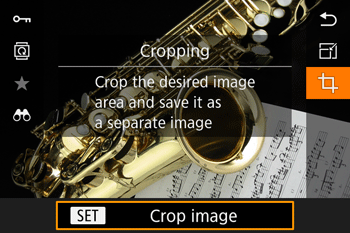
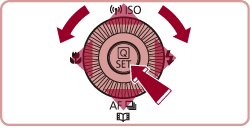
3. Select the icon for the desired operation (Resize, move, aspect ratio adjustment).
The cropping frame will be displayed.
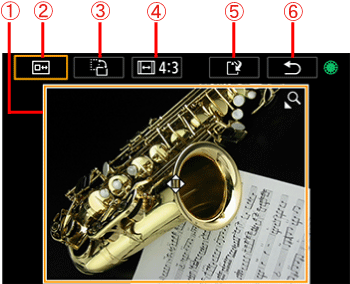
[Cropping Icons]
- Turn the [ ] dial to choose the individual icons.
 |  Cropping Frame | ・To resize the frame, move the zoom lever. ・To move the frame, press the [ ], [ ], [ ], [ ] buttons. |
 |  Preview the cropped image. | To switch display between the cropped image and the cropping frame, press the [ ] button repeatedly. |
 |  Change the frame orientation | Press the [ ] button to change the frame orientation. |
 |  Change the frame aspect ratio | Press the [ ] button to switch between the [3:2], [16:9], [4:3], [1:1] aspect ratios. |
 |  Save as a new image | Press the [ ] button to save the cropped image as a new image. |
 |  Return to the previous screen | Press the [ ] button to return to the previous screen. |
4. Preview the cropped image.
Select [ ].To switch display between the cropped image and the cropping frame, press the [ ] button repeatedly.
].To switch display between the cropped image and the cropping frame, press the [ ] button repeatedly.[Cropping Frame]
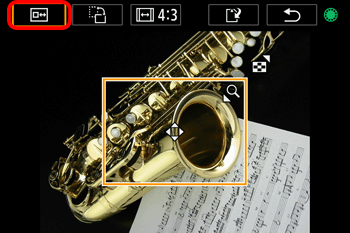

[After Cropping]
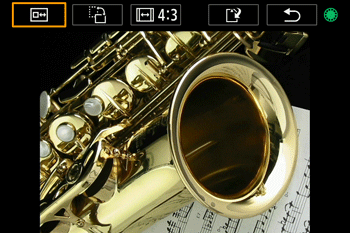
NOTE
While previewing the cropped image, you can resize, move, and adjust the aspect ratio of the cropping frame.
5. To save the image, choose [ ] and press the [ ] button.
] and press the [ ] button.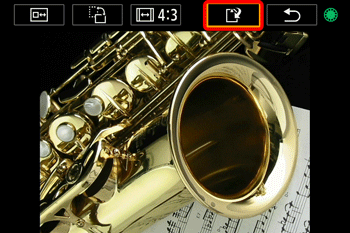
Choose [OK], and then press the [ ] button.
] button.The image is now saved as a new file.
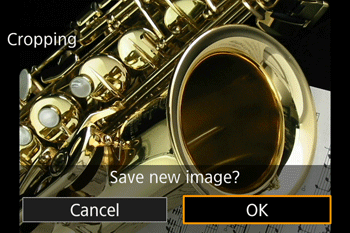
7. When the following screen is displayed, choose [Yes] and press the [ ] button.
] button.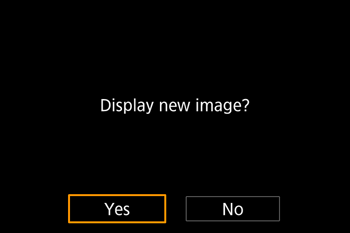
The saved image is now displayed.
NOTE
- Cropped images will have a lower resolution than uncropped images.
- If you crop still images shot using Face ID, only the names of the people left in the cropped image will remain.
This completes the steps for specifying a portion of an image to save as a separate image file.